...

What We Think

Blog

Keep up with the latest in technological advancements and business strategies, with thought leadership articles contributed by our staff.
TECH

December 2, 2025

Build an App from SharePoint with Power Apps – Part 2

Welcome back to our series “From Zero to Digital Hero with Power Apps.”
In the previous post, you learned what Power Apps is and why it’s a game-changer for modern workplaces.
Now, it’s time to turn theory into action — we’ll build your very first app, using SharePoint as the data source.

https://isb-vietnam.net/blog/tech/what-is-power-apps-starting-your-digital-journey-from-zero-part-1/

1. Prepare Your Data in SharePoint

Before creating the app, we need a list that stores all our information.
Think of SharePoint lists like a smart Excel table — accessible online, collaborative, and ready to connect with Power Apps.
Example: Employee Requests list

How to create it:

  • Go to your SharePoint site (e.g., https://yourcompany.sharepoint.com/sites/team)

  • Click New → List → Blank list

  • Name it EmployeeRequests

  • Add columns:

    • Title – Request title (default column)

    • EmployeeName – Single line of text

    • Department – Choice: HR, IT, Finance, Sales

    • RequestDate – Date and Time

    • Status – Choice: Pending, Approved, Rejected

*Avoid spaces in column names (e.g., use EmployeeName instead of Employee Name) to prevent syntax issues in Power Apps.

2. Create the App Directly from SharePoint

Now comes the fun part — generating the app automatically!

  1. Open your EmployeeRequests list in SharePoint.

  2. On the top menu, select Integrate → Power Apps → Create an app.

  3. Give your app a name, for example: Employee Request App.

  4. Wait a few moments — Power Apps will build your app with three default screens:

    • Browse Screen – View all requests

    • Detail Screen – View request details

    • Edit Screen – Create or modify a request

Behind the scenes: Power Apps automatically reads your list structure and builds a connected interface in seconds — something that used to take hours of coding!

3. Customize Your App

Once the app opens in Power Apps Studio, it’s time to make it yours.

  • Change the title:
    Select the top label → Rename it to Employee Requests Management

  • Adjust the layout:
    Choose the gallery → Layout → Title and Subtitle

  • Show the right fields:

    • Title = ThisItem.EmployeeName

    • Subtitle = ThisItem.Status

*Keep your design simple. End users prefer fewer clicks and clear labels — not fancy graphics.

4. Add More Data Connections (Optional)

Want to expand your app’s power?
Connect additional data sources like Microsoft Teams, Outlook, or another SharePoint list (e.g., Departments) for lookups.

How to do it:

Go to Data → Add data → SharePoint → Select your site → Choose the list.

5. Test and Share Your App

Click Play ▶️ to test your app.

Try these actions:

  • Create a new request

  • Update the status (Pending → Approved)

  • Delete a record

When ready:

  1. Go to File → Save → Publish

  2. Return to SharePoint

  3. You’ll find your app under Power Apps → Apps

Share your success: Click Share to invite colleagues, or embed the app directly in your SharePoint page or Teams channel for daily use


Conclusion – You’ve Built Your First Power App!

Congratulations — you’ve just created a working app straight from a SharePoint list without writing a single line of code!

Whether you need scalable software solutions, expert IT outsourcing, or a long-term development partner, ISB Vietnam is here to deliver. Let’s build something great together—reach out to us today. Or click here to explore more ISB Vietnam's case studies.

View More
TECH

December 2, 2025

The Ultimate Guide to Detecting TURN Server Usage in WebRTC

How to Detect TURN Server Usage in WebRTC

In WebRTC, connecting two peers involves finding the best path using Interactive Connectivity Establishment (ICE). This path can be direct (peer-to-peer) or relayed via a TURN server. Knowing which path your connection uses is important for monitoring performance and managing costs.

Your connection type—direct or relayed—is determined by the selected ICE candidate.

The Three Types of ICE Candidates

ICE candidates are the network addresses your browser discovers to reach a remote peer:

Candidate Type Description Connection Path
host Direct local IP (LAN) Direct (Local Network)
srflx Public IP discovered via STUN Direct (Internet P2P)
relay Routed through a TURN server Relayed (TURN Server)

Tip: If the selected candidate type is relay, your connection is definitely using a TURN server

Step 1: Listen for ICE Candidates

You can track all discovered candidates by listening for the icecandidate event on your RTCPeerConnection:

peerConnection.addEventListener("icecandidate", event => {
       if (event.candidate) {
             console.log("ICE candidate:", event.candidate.candidate);
           // Look for "typ relay" to detect TURN usage
       }
});

Step 2: Check the Selected Candidate Pair Using getStats()

The most reliable method is using the getStats() API. This reports the candidate pair that has been selected and successfully connected.

async function checkTurnUsage(peerConnection) {
       const stats = await peerConnection.getStats();

       stats.forEach(report => {
             if (report.type === "candidate-pair" && report.state === "succeeded" && report.selected) {
                   const local = stats.get(report.localCandidateId);
                   const remote = stats.get(report.remoteCandidateId);

                   if (local?.candidateType === "relay" || remote?.candidateType === "relay") {
                         console.log("Connection is using TURN (relay).");
                   } else {
                         console.log("Connection is direct (host/srflx).");
                   }
             }
       });
}

Step 3: Continuously Monitor Path Changes

WebRTC connections can switch ICE candidates if network conditions change. To monitor dynamically, listen for relevant events:

// When the selected candidate pair changes
peerConnection.addEventListener("icecandidatepairchange", () => {
       checkTurnUsage(peerConnection);
});

// When the connection becomes stable
peerConnection.addEventListener("iceconnectionstatechange", () => {
       if (peerConnection.iceConnectionState === "connected" ||
            peerConnection.iceConnectionState === "completed") {
             checkTurnUsage(peerConnection);
       }
});

Summary Checklist

Action Purpose Key Indicator
Check ICE Candidate Type Identify potential paths host → local / srflx → direct P2P / relay → TURN
Use getStats() Confirm selected pair Look for candidateType: "relay"
Monitor Events Track dynamic changes icecandidatepairchange or iceconnectionstatechange


Conclusion

Detecting TURN server usage is crucial for optimizing WebRTC performance and controlling costs. By understanding host, srflx, and relay candidates, using getStats() to verify the selected pair, and monitoring events for changes, developers can ensure reliable, real-time connectivity. This approach helps deliver smooth, high-quality WebRTC experiences while keeping infrastructure usage efficient.

Ready to get started?

Contact IVC for a free consultation and discover how we can help your business grow online.

Contact IVC for a Free Consultation
View More
TECH

December 2, 2025

Secure KVS WebRTC with AWS STS Temporary Credentials

Use AWS STS to Get Temporary Credentials for KVS WebRTC

In modern web apps, hardcoding long-term AWS credentials is risky, especially for real-time services like Kinesis Video Streams (KVS) WebRTC. The safe way is to use temporary credentials generated by AWS Security Token Service (STS). This guide explains how it works and how to securely connect to AWS KVS.

What is AWS STS?

AWS STS issues temporary security credentials so your app can access AWS resources without storing long-term keys.

Feature Description
Duration Short-lived, from a few minutes up to a few hours
Based on An existing identity (IAM user, IAM role, SAML, OIDC, etc.)
Use Case Temporary access for mobile/web apps, third-party access, or high-security scenarios

Tip: Using temporary credentials helps reduce security risks and adhere to the principle of least privilege

How Authentication Works

Here’s the typical flow for getting temporary credentials for KVS:

  1. User Login: The user opens your web app and logs in.
  2. JWT Token: After login, the web app receives a JWT token from Cognito User Pool.
  3. Identity Exchange: The app sends the JWT to Cognito Identity Pool, which internally calls STS AssumeRoleWithWebIdentity.
  4. Temporary Credentials: STS returns credentials: AccessKeyId, SecretAccessKey, SessionToken.

KVS Access: The web app uses these credentials to call Kinesis Video Streams WebRTC APIs

Sequence: Get Credentials and Connect

Here’s a step-by-step sequence of communication

Step Who Action Recipient Note
1 User Start LIVE request Web backend Initiates streaming
2 Web Request Credential AWS Cognito Starts auth and token exchange
3 AWS Cognito Request temp credentials AWS STS STS generates short-lived credentials
4 Web Return STS credentials User frontend Frontend receives temporary keys
5 User Connect WebRTC using STS AWS KVS Secure connection established
6 Connection Connected .. Temporary, secure streaming active


Handling Expired Credentials

  • STS credentials are short-lived (default: 1 hour).
  • If they expire, the web app cannot continue streaming.

Make sure your app refreshes credentials automatically when needed

Quick Checklist

  • Get JWT token after user login
  • Exchange JWT with Cognito Identity Pool → STS generates temporary credentials
  • Use credentials to connect WebRTC → Secure, temporary connection to KVS
  • Monitor expiration → Refresh credentials before they expire

Why This Matters

Using Cognito + STS is the secure, recommended approach:

  • No long-term keys in the app
  • Access follows least privilege principle
  • Seamless, secure real-time streaming

It works for Vue, React, or any web client that needs temporary access to AWS KVS WebRTC

Conclusion

By leveraging AWS STS with Cognito, your web app can securely access Kinesis Video Streams without hardcoding credentials. Following this flow:

  1. User logs in → JWT obtained
  2. JWT exchanged → Temporary credentials generated

Connect using temporary credentials → Secure streaming

Ready to get started?

Contact IVC for a free consultation and discover how we can help your business grow online.

Contact IVC for a Free Consultation
View More
TECH

December 2, 2025

Modernize Your WPF App with MahApps.Metro: The Ultimate Guide

Windows Presentation Foundation (WPF) remains a powerful UI framework, but let’s face it: its default styling looks outdated for modern standards. Creating a polished, Windows 11-style desktop app often requires substantial time spent building custom themes, controls, and animations from scratch.

This is where MahApps.Metro shines.

MahApps.Metro is an open-source library that transforms standard WPF applications into clean, modern, and stylish interfaces inspired by the Windows Metro/Fluent design language. With minimal setup and well-designed components, it has become one of the most popular UI frameworks for .NET developers.

In this article, we’ll explore what MahApps.Metro offers, why it’s useful, and how to integrate it into your next WPF project.

What Is MahApps.Metro?

MahApps.Metro is a comprehensive UI toolkit for WPF that overrides the default look and feel of your application. It provides:

  • Modern Aesthetics: Metro/Fluent-inspired themes out of the box.

  • Customization: Fully customizable color palettes and accents.

  • Rich Controls: Ready-made components such as dialogs, toggle switches, and tiles.

  • Visual Flair: Animated transitions and ripple effects.

  • Compatibility: Full support for .NET Framework, .NET Core, and .NET 5+.

Unlike building custom UserControls yourself, utilizing this library ensures a consistent design language across your entire application with minimal effort.

Why Use MahApps.Metro?

Modern, Professional Look

WPF’s default controls (like the standard gray button) look like they belong in Windows 98. MahApps.Metro instantly upgrades your application’s appearance to match modern OS standards.

Easy to Customize

Themes, accents, and color palettes can be changed dynamically at runtime. This makes implementation of Dark Mode and Light Mode seamless.

Rich Set of Controls

The library includes polished components that are missing from standard WPF, such as:

  • MetroWindow (Custom chrome window)

  • Flyouts

  • Dialogs

  • ToggleSwitch

  • RangeSlider

  • HamburgerMenu

Active and Mature Project

The library has been around for years and continues to receive updates, community support, and compatibility improvements. [External Link: Visit the official MahApps.Metro GitHub]

Installing MahApps.Metro

You can easily install the library via NuGet Package Manager.

Using Package Manager Console:

PowerShell
Install-Package MahApps.Metro

Using .NET CLI:

Bash
dotnet add package MahApps.Metro

Converting Your Window to MetroWindow

To enable the styling, you need to replace the default WPF <Window> with <controls:MetroWindow>.

Before:

XML
<Window x:Class="SampleApp.MainWindow" ...>

After:

  1. Add the namespace.

  2. Change the root element.

XML
<controls:MetroWindow
    x:Class="SampleApp.MainWindow"
    xmlns:controls="http://metro.mahapps.com/winfx/xaml/controls"
    xmlns:x="http://schemas.microsoft.com/winfx/2006/xaml"
    Title="My Modern App" Height="450" Width="800">
    
    <Grid>
        </Grid>
    
</controls:MetroWindow>

Visual Comparison: Below is the difference between a standard WPF window and the modernized look you get immediately after implementing MahApps.Metro.


Applying a Theme and Accent

MahApps.Metro uses a ThemeManager to control global settings. You can set this in your App.xaml.cs or change it dynamically.

Set Dark Theme (Blue Accent):

C#
using ControlzEx.Theming;

// Inside your constructor or event handler
ThemeManager.Current.ChangeTheme(this, "Dark.Blue");

Set Light Theme (Steel Accent):

C#
ThemeManager.Current.ChangeTheme(this, "Light.Steel");

This flexibility is perfect for applications that need to respect user system preferences.

Exploring Key Controls

Flyouts

Flyouts are slide-out panels often used for menus, settings, or notifications. They don't block the UI like modal dialogs.

XML
<controls:MetroWindow.Flyouts>
    <controls:FlyoutsControl>
        <controls:Flyout Header="Settings" Position="Right" Width="300">
            <StackPanel>
                <TextBlock Text="Application Settings" Style="{StaticResource MetroTitleTextBlock}"/>
                </StackPanel>
        </controls:Flyout>
    </controls:FlyoutsControl>
</controls:MetroWindow.Flyouts>

Dialogs

Forget the ugly MessageBox.Show(). MahApps provides asynchronous, styled dialogs that overlay the window content nicely.

C#
using MahApps.Metro.Controls.Dialogs;

// Call this from your MetroWindow code-behind or ViewModel
await this.ShowMessageAsync("Success", "This is a modern MahApps dialog!");

Dialog Example: Here is how a clean, dark-themed dialog looks within the application:


ToggleSwitch

A replacement for the CheckBox, offering a modern mobile-style switch.

XML
<controls:ToggleSwitch Header="Enable Dark Mode" IsOn="True"/>

Implementing HamburgerMenu Navigation

One of the standout features is the HamburgerMenu, ideal for modern navigation-based apps (similar to UWP or Windows Settings).

XML
<controls:HamburgerMenu x:Name="HamburgerMenuControl"
                        HamburgerWidth="48"
                        ItemsSource="{Binding MenuItems}"
                        ItemTemplate="{StaticResource MenuItemTemplate}">
    
    <controls:HamburgerMenu.Content>
        <Frame x:Name="ContentFrame" NavigationUIVisibility="Hidden"/>
    </controls:HamburgerMenu.Content>
    
</controls:HamburgerMenu>

It gives your app a professional navigation experience with very little configuration.

Best Practices

To get the most out of MahApps.Metro:

  1. Consistent Resources: Use the defined DynamicResource brushes (like MahApps.Brushes.Accent) so your controls update automatically when the theme changes.

  2. Combine with MVVM: Keep your UI logic separate. MahApps works great with frameworks like Prism or MVVM Community Toolkit.

  3. Integration: It works well alongside MaterialDesignInXAML if you want a hybrid look.

Conclusion

MahApps.Metro is one of the most developer-friendly libraries available for WPF. It helps you modernize your application instantly, improve user experience, and reduce UI development time.

Whether you're building a new tool or modernizing a legacy enterprise app, MahApps.Metro is an excellent choice for creating a polished interface with minimal effort.

References

Ready to get started?

Contact IVC for a free consultation and discover how we can help your business grow online.

Contact IVC for a Free Consultation

View More
TECH

December 2, 2025

The Ultimate Guide to Windows Steps Recorder (PSR)

Step Recorder, also called Problem Steps Recorder (PSR), is a free tool built into Windows. It helps you capture actions, such as clicks, key presses, and screenshots. As a result, it is easier to show errors or explain steps to others. In addition, it does not require extra software.

What Step Recorder Does

Instead of recording a video, PSR creates a .zip file with a report (.mht or .html). For example, it includes:

  • Text Descriptions of each action (e.g., “User left-clicked the ‘New’ button in Microsoft Word.”)
  • Screenshots for each step, with the clicked area highlighted in green
  • System messages that appear during the process

Strengths

  • Built-in tool - No installation required
  • Ease of Use - The interface is intuitive with only 3 buttons (Start, Stop, Pause)
  • Accurate step-by-step logging of clicks, key presses, and errors
  • Small file size compared to full video recordings

Weaknesses

  • Not a video — does not capture mouse movement or animations
  • May become unresponsive in rare cases during long or complex recordings

How to Open Step Recorder

You can open Step Recorder in two ways:

1. Using Run

  • Press the Windows + R
  • Type psr
  • Click OK button.

2. Using Start Menu

  • Open Start
  • Search for “Steps Recorder”
  • Click to launch

How to Record Steps

1. Start Record

Click Start Record on the main interface.

2. Record

Reproduce the error or go through the workflow you want to document.

3. Stop Record

Click Stop Record when finished.

You will be prompted to save the recording as a .zip file.

Conclusion

Step Recorder is a simple Windows tool. In addition, it turns your actions into a clear report with text and screenshots. As a result, it helps document workflows and share problems with support teams. Overall, it is fast, easy to use, and does not require extra software. Therefore, it is an essential tool for troubleshooting and workflow documentation.

References:

https://support.microsoft.com/en-us/windows/steps-recorder-deprecation-a64888d7-8482-4965-8ce3-25fb004e975f
https://www.ninjaone.com/blog/enable-or-disable-steps-recorder-in-windows/#:~:text=Windows Steps Recorder%2C otherwise known,including screenshots and text descriptions.

Ready to get started?

Contact IVC for a free consultation and discover how we can help your business grow online.

Contact IVC for a Free Consultation
View More
TECH

December 2, 2025

Simulating Serial Port Devices When You Don’t Have Real Hardware

Your app connects to devices (ECS777, Glory300, etc.) via a serial port, but you don’t have the real hardware and still want to test and improve your code. Here’s a simple solution.

The architecture looks like this:

##################################### Linux os ############################################
###   [your app] <---->[/dev/ttychan] <====> [/dev/ttychansim] <---->  [dummyData app]  ###
##################################### Linux os ############################################

How to implement

Socat can create two bidirectional byte streams and link them together, allowing data to flow between /dev/ttychan and /dev/ttychansim. Currently, Socat is available in the package repository and you can install it using the command below

Strengths

  • Simple and easy to set up test data: Socat can connect almost anything to anything (TCP, UDP, UNIX sockets, PTY/TTY/Serial Ports, SSL, etc.). This makes it easy to simulate devices using Serial/COM ports and send data just like a real device
  • Supports autotesting: Since it is a command-line tool, Socat is ideal for automation (CI/CD pipelines, Bash/Python scripts). It can run in the background and create virtual port pairs for testing without manual work.

Weaknesses

  • Installing and using it through the command line can be difficult
  • Test data is fixed, so you need to create many different cases manually.Socat only forwards data. It cannot automatically respond with custom rules (e.g., “if command A is received, reply B after 500ms”). You need extra scripts (Python, Perl, etc.) for that

Installation

    # apt install socat
    # socat -V
        socat by Gerhard Rieger and contributors - see www.dest-unreach.org
        socat version 1.8.0.0 on 08 Apr 2024 14:50:22

A simple example

Suppose [yourApp] connects to a real hardware through /dev/ttychan, and you want to create a Python application [dummyData] to simulate the data sent to [yourApp].

Refer to the diagram below:

  • yourApp.c file
...
    const char *portname = "/dev/ttychan"; 
    int fd = open(portname, O_RDWR | O_NOCTTY | O_SYNC);
    set_interface_attribs(fd, B9600, 'n');
...
...
    ser = serial.Serial(
        port='/dev/ttychansim',
        baudrate=9600
...
  • Create two bidirectional streams to allow data to flow between /dev/ttychan and /dev/ttychansim.
   sudo socat -d -d PTY,link=/dev/ttychan,raw,echo=0,b9600 PTY,link=/dev/ttychansim,raw,echo=0,b9600 &
  • Testing
Start dummyData

Start yourApp

Conclusion

The challenge of testing serial port applications without physical hardware is easily solved using Socat. By creating linked Virtual Serial Ports (PTY), Socat provides a simple, command-line solution that perfectly simulates real device communication. This immediately decouples development from hardware availability, making it an ideal method for autotesting and continuous integration pipelines. While complex device logic still requires custom scripting, the core barrier to flexible, automated testing is removed.

References:

https://man7.org/linux/man-pages/man1/socat.1.html

Ready to get started?

Contact IVC for a free consultation and discover how we can help your business grow online.

Contact IVC for a Free Consultation
View More
TECH

December 2, 2025

PostgreSQL Query Optimization: How to Make Your Queries Fast, Efficient, and Scalable

Query performance is the heartbeat of any high-traffic application. Even with a well-designed architecture, a single inefficient query can lock up resources, spike CPU usage, and degrade the user experience.

In this guide, we go beyond the basics to explore how PostgreSQL executes queries, why bottlenecks occur, and actionable techniques to ensure your database scales efficiently.

How PostgreSQL Executes a Query

Understanding the lifecycle of a query helps you "think" like the database.

  1. Parsing: PostgreSQL checks the SQL syntax.

  2. Rewriting: It applies rules (e.g., converting views into base tables).

  3. Planning / Optimization: The Planner evaluates multiple paths (Scan types, Join methods) and calculates a Cost for each. It selects the path with the lowest estimated cost.

  4. Execution: The Executor runs the plan and returns results.

Key Scan Types to Watch:

  • Seq Scan (Sequential Scan): Reads the entire table. Good for small tables, bad for large ones.

  • Index Scan: Looks up specific rows using an index.

  • Index Only Scan: Retrieves data directly from the index without visiting the heap (table storage). (Fastest)

  • Bitmap Heap Scan: A middle ground, combining index lookups with batch table reads.

Master EXPLAIN (ANALYZE, BUFFERS)

Don't just guess—measure. While EXPLAIN ANALYZE gives you time, adding BUFFERS reveals the true cost regarding memory and disk I/O.

Command:

SQL
EXPLAIN (ANALYZE, BUFFERS) 
SELECT * FROM orders WHERE customer_id = 123;

What to look for:

  • Execution Time: Actual time taken.

  • Buffers shared hit: How many data blocks were found in memory (RAM). High is good.

  • Buffers read: How many blocks had to be read from the disk (Slow).

  • Rows (Estimated vs. Actual): If these numbers differ significantly (e.g., est 1 row, actual 10,000), your table statistics are likely outdated.

Proper Indexing Strategy

Indexes are powerful, but they are not free—they consume disk space and slow down INSERT/UPDATE operations.

Choose the Right Index Type

  • B-Tree (Default): Best for =, <, >, BETWEEN, and sorting (ORDER BY).

  • GIN: Essential for JSONB and Full-Text Search.

  • GiST: Optimized for geospatial data (PostGIS) and complex geometric types.

  • BRIN: ideal for massive, time-series tables (e.g., billions of rows of logs) ordered physically by date.

Pro Tip: Use Covering Indexes (INCLUDE)

If you only need a few columns, you can include them in the index payload to achieve an Index Only Scan.

Scenario: You frequently query status by customer_id.

SQL
-- Standard Index
CREATE INDEX idx_orders_customer ON orders(customer_id);

-- Covering Index (Better)
CREATE INDEX idx_orders_customer_covering ON orders(customer_id) INCLUDE (status);

Now, SELECT status FROM orders WHERE customer_id = 123 never touches the main table table, reducing I/O drastically.

Optimizing JOIN Operations

Joins are expensive. Help the planner by keeping them simple.

  • Index Foreign Keys: Ensure columns used in ON clauses are indexed on both sides.

  • Avoid Casting:

    • JOIN ... ON o.order_code::text = p.product_code (Cannot use index)

    • ✅ Ensure data types match in the schema design.

  • Filter Before Joining: Reduce the dataset size before the join happens.

Example:

SQL
SELECT c.name, o.total 
FROM customers c
JOIN orders o ON c.id = o.customer_id
WHERE o.created_at > '2024-01-01';
-- Ensure an index exists on orders(created_at) so PG filters orders first!

Fetch Only What You Need

Transferring data over the network is often the unseen bottleneck.

Avoid SELECT *

Using SELECT * prevents "Index Only Scans" and adds network latency. Always list specific columns.

Use LIMIT and Paging

Never return thousands of rows to a frontend application.

SQL
SELECT id, status FROM logs ORDER BY created_at DESC LIMIT 50;

Materialized Views for Heavy Analytics

For complex aggregations (Sums, Averages) over large datasets that don't need real-time accuracy, use Materialized Views.

SQL
CREATE MATERIALIZED VIEW monthly_sales_report AS
SELECT 
    DATE_TRUNC('month', created_at) as month, 
    SUM(total_amount) as revenue
FROM orders
GROUP BY 1;

-- Create an index on the view for fast lookup
CREATE INDEX idx_monthly_sales ON monthly_sales_report(month);

To update data without locking the table (Crucial for production):

SQL
REFRESH MATERIALIZED VIEW CONCURRENTLY monthly_sales_report;

Partitioning for Scale

When a table exceeds ~50GB or 100 million rows, B-Tree indexes become deep and slow. Partitioning breaks the table into smaller, manageable chunks.

Example: Range Partitioning

SQL
-- 1. Create Parent Table
CREATE TABLE logs (
    id SERIAL, 
    created_at TIMESTAMP NOT NULL, 
    message TEXT
) PARTITION BY RANGE (created_at);

-- 2. Create Partitions (Child Tables)
CREATE TABLE logs_2024_01 PARTITION OF logs 
    FOR VALUES FROM ('2024-01-01') TO ('2024-02-01');

CREATE TABLE logs_2024_02 PARTITION OF logs 
    FOR VALUES FROM ('2024-02-01') TO ('2024-03-01');

Benefit: Queries with WHERE created_at = '2024-01-15' will only scan logs_2024_01 and ignore others (Partition Pruning).

Optimizing String Search

The standard LIKE '%term%' starts with a wildcard, rendering B-Tree indexes useless.

Solution: pg_trgm extension Trigram indexes break strings into 3-character chunks, allowing fast wildcard searches.

SQL
CREATE EXTENSION IF NOT EXISTS pg_trgm;

CREATE INDEX idx_users_email_trgm ON users USING GIN (email gin_trgm_ops);

-- Now this query is indexed:
SELECT * FROM users WHERE email LIKE '%gmail%';

Configuration Tuning

Don't run PostgreSQL with default settings (which are often tuned for compatibility, not performance). Key parameters in postgresql.conf:

  • shared_buffers: Set to ~25% of total RAM. Dedicated memory for caching data.

  • work_mem: Memory per operation (sorts/hash joins). Caution: This is per connection. Too high = Out of Memory. Start with 16MB-64MB.

  • random_page_cost: Default is 4.0 (for HDDs). If using SSDs, set to 1.1. This encourages the planner to use indexes more often.

  • effective_cache_size: Set to ~75% of total RAM. Helps the planner estimate OS caching capability.

Conclusion

Optimization is an iterative process. Start by identifying the bottleneck using EXPLAIN (ANALYZE, BUFFERS), apply the appropriate index or schema change, and measure again.

Quick Checklist:

  1. Did you avoid SELECT *?

  2. Are your Foreign Keys indexed?

  3. Are you using the correct Index type (B-Tree vs GIN)?

  4. Did you run VACUUM ANALYZE recently to update statistics?

  5. Is your random_page_cost configured for SSDs?


Reference Links


Ready to get started?

Contact IVC for a free consultation and discover how we can help your business grow online.

Contact IVC for a Free Consultation
View More
TECH

December 2, 2025

Qt Quick 3D in a Nutshell

Qt Quick 3D in a Nutshell

Qt Quick 3D is Qt’s high-level 3D API that extends the familiar Qt Quick world into three dimensions. Instead of bolting on an external engine, Qt Quick 3D plugs directly into the Qt Quick scene graph, so you can mix 2D and 3D content in the same UI and control everything from QML: bindings, states, animations, and input. doc.qt.io

For many apps that “just need some 3D”—dashboards, visualizations, XR UIs, small games—this gives you a much simpler workflow than writing a custom renderer or embedding a full game engine.

Starting Simple: Built-in 3D Primitives

The easiest way to learn Qt Quick 3D is with the built-in primitive meshes. A Model type can load either a .mesh file or one of several primitives by setting source to special names like #Cube or #Sphere. doc.qt.io+1

Supported primitives include:

    • #Rectangle – a flat quad, handy as a floor, wall, or screen.
    • #Cube – a box, good for quick blocking-out of shapes.
  • #Sphere – obvious, but great for lights or markers.
  • #Cylinder
  • #Cone

Example:

Model {
      source: "#Cube"
      materials: PrincipledMaterial {
          baseColor: "red"
      }
}

With View3D, a PerspectiveCamera, some lights, and a few primitives, you can already build small scenes and prototypes.
But for anything realistic—like an old bar interior or a detailed UFO—you usually want pre-modeled assets created in tools such as Blender or Maya.

From Primitives to Real Scenes with Pre-Modeled Assets

Qt Quick 3D supports importing 3D models from standard interchange formats like glTF 2.0, FBX, OBJ, and others. These assets typically include:

  • geometry (mesh)
  • multiple materials
  • texture maps (albedo, normal, roughness, etc.)
  • sometimes animations

The official “Qt Quick 3D Introduction with glTF Assets” guide shows exactly this: starting from a minimal green View3D, then importing the famous Sponza and Suzanne models from the glTF sample repository using Qt’s asset tools, and finally lighting and animating them. doc.qt.io

To make this efficient at runtime, assets are pre-processed into Qt’s own mesh and texture formats instead of loading raw glTF/FBX directly. That’s where Balsam comes in.

Balsam & BalsamUI: Converting 3D Assets to QML

Balsam is Qt Quick 3D’s asset import tool(usually stored in "[your installed Qt folder]\[Qt version: like 6.8.3]\msvc2022_64\bin\" folder). It takes files from DCC tools (Blender, Maya, 3ds Max, …) and converts them into:

  • a QML component (sub-scene) like qml
  • one or more .mesh files under a meshes/ directory
  • textures copied and organized under a maps/ directory qt.io+1

High-level idea:
balsam myModel.gltf# → generates:# meshes/myModel.mesh# MyModel.qml# maps/* (textures)
Inside your QML scene you simply write:
import QtQuick3D MyModel { id: modelInstance}
Qt also ships BalsamUI (balsamui), a GUI frontend where you pick the source asset and output folder, and tweak options like generating normals, LODs, or lightmap UVs. doc.qt.io+1
Supported formats include OBJ, FBX, COLLADA, STL, PLY and glTF2 (.gltf, .glb). doc.qt.io
So the workflow for designers and developers becomes:
     1. Model & texture in your DCC tool.
     2. Export as glTF (or FBX/OBJ…).
     3. Run balsamui (or balsam) to generate QML + meshes + textures.
     4. Instantiate the generated QML type inside your Qt Quick 3D scene.

Example: An Old Bar with a Floating UFO

Let’s put everything together with a small sample: a walkable old bar scene with a hovering UFO that always stays in front of the camera, rotates, and emits light.
We’ll use two Sketchfab models (downloaded in glTF format):

Make sure you respect each asset’s license when you download and ship them.

Step 1 – Skeleton QML App

First we create a minimal Qt Quick application with a single Window and a View3D:

import QtQuick
import QtQuick3D
import QtQuick3D.Helpers

Window {
              width: 1024
              height: 768
              visible: true
              title: qsTr("3D Model example")

              View3D {
                    anchors.fill: parent
                    environment: SceneEnvironment {
                          backgroundMode: SceneEnvironment.SkyBox
                    }

                    PerspectiveCamera {
                          id: camera
                    }

                    WasdController {
                          controlledObject: camera
                    }
        }
}

This is very similar to the “skeleton application” shown in the Qt glTF asset intro article: a View3D, a camera, and a WasdController so we can fly around the scene. doc.qt.io

Step 2 – Convert the Bar and UFO with BalsamUI

  1. Download the Old Bar and UFO models from Sketchfab as glTF.
  2. Start balsamui (it ships with Qt Quick 3D).
  3. In balsamui:
    • Choose the input file, e.g. gltf.
    • Set an output directory inside your project, e.g. assets/bar/.
    • Click Convert.
  4. Repeat for the UFO glTF file.

For each asset you’ll get something like:

  • qml (or a name based on the source file)
  • meshes/Bar.mesh
  • maps/* textures

and similarly for UFO.qml.
These QML files are sub-scenes: self-contained node trees with models, materials and textures that you can instantiate inside any View3D. doc.qt.io+1
Place them in your project (for example in the same directory as main.qml) so that QML can find them by name.

Step 3 – Instantiating the Converted Models

Now we pull those generated components into our scene.

  • Bar becomes the environment (room).
  • UFO is a smaller object floating in front of the camera.

You already prepared a final QML; here it is as the complete sample:

import QtQuick
import QtQuick3D
import QtQuick3D.Helpers 

Window {
    width: 1024
    height: 768
    visible: true

    title: qsTr("3D Model example")
    View3D {
        anchors.fill: parent
       
        environment: SceneEnvironment {
            backgroundMode: SceneEnvironment.SkyBox
        }

        PerspectiveCamera {
            id: camera
            y: 650
            z: 200

            Node { 
                id: ufoAnchor 
                y: -30        // below eye level
                z: -150       // distance in front

                Node {
                    id: ufoRig

                    // UFO rotates around itself
                    PropertyAnimation on eulerRotation.y {
                        from: 0
                        to: 360
                        duration: 8000
                        loops: Animation.Infinite

                    }

                    UFO {
                        id: ufo
                        scale: Qt.vector3d(4, 4, 4)
                    }

                    PointLight {
                        id: ufoFillLight
                        y: 0
                        color: "#fff2c0"
                        brightness: 50
                        castsShadow: true
                        shadowFactor: 60
                    }
                } 
            }
        }

        Bar {
            scale: Qt.vector3d(100, 100, 100)
        }

        WasdController {
            controlledObject: camera
        }
    }
}

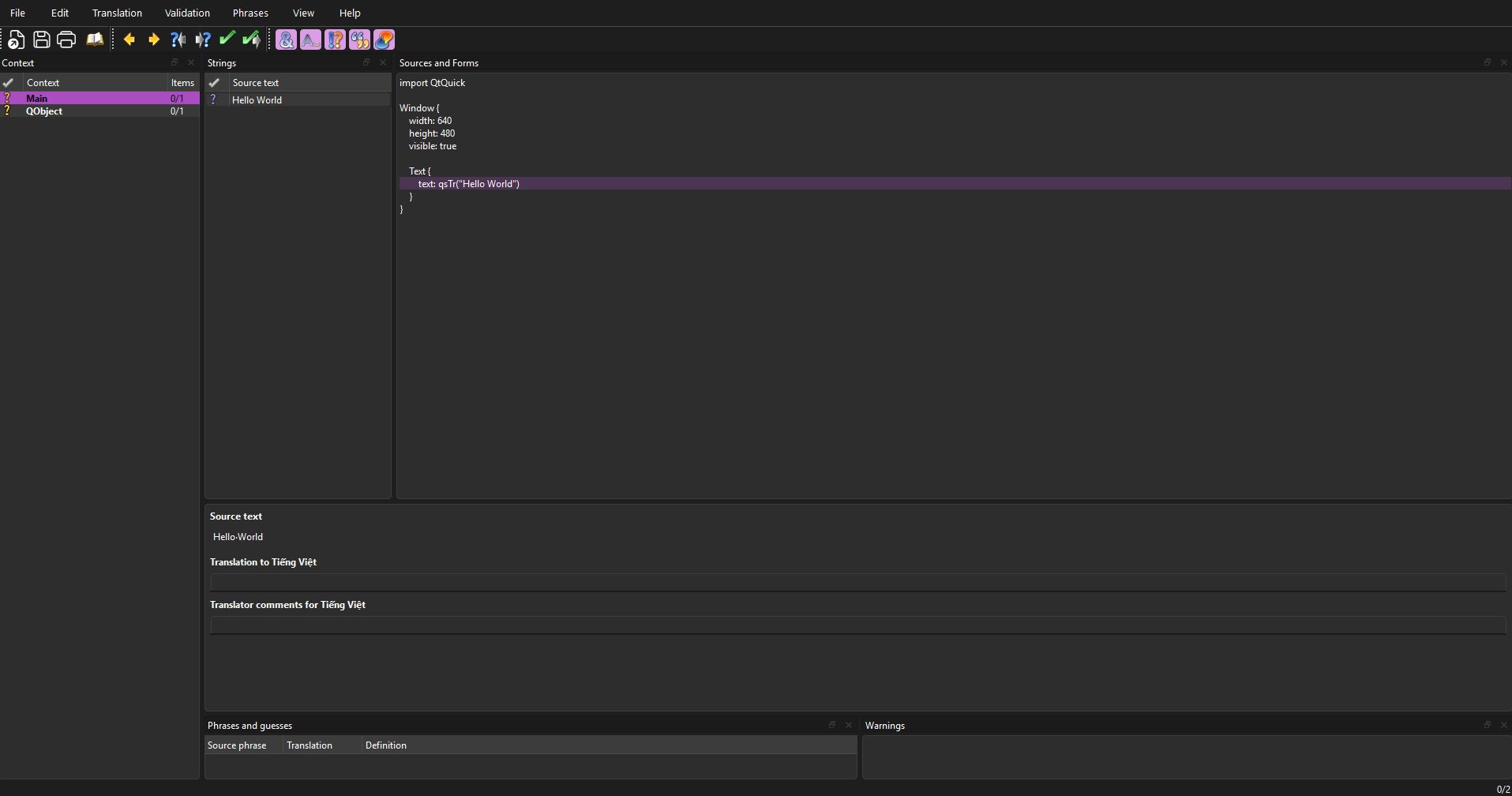
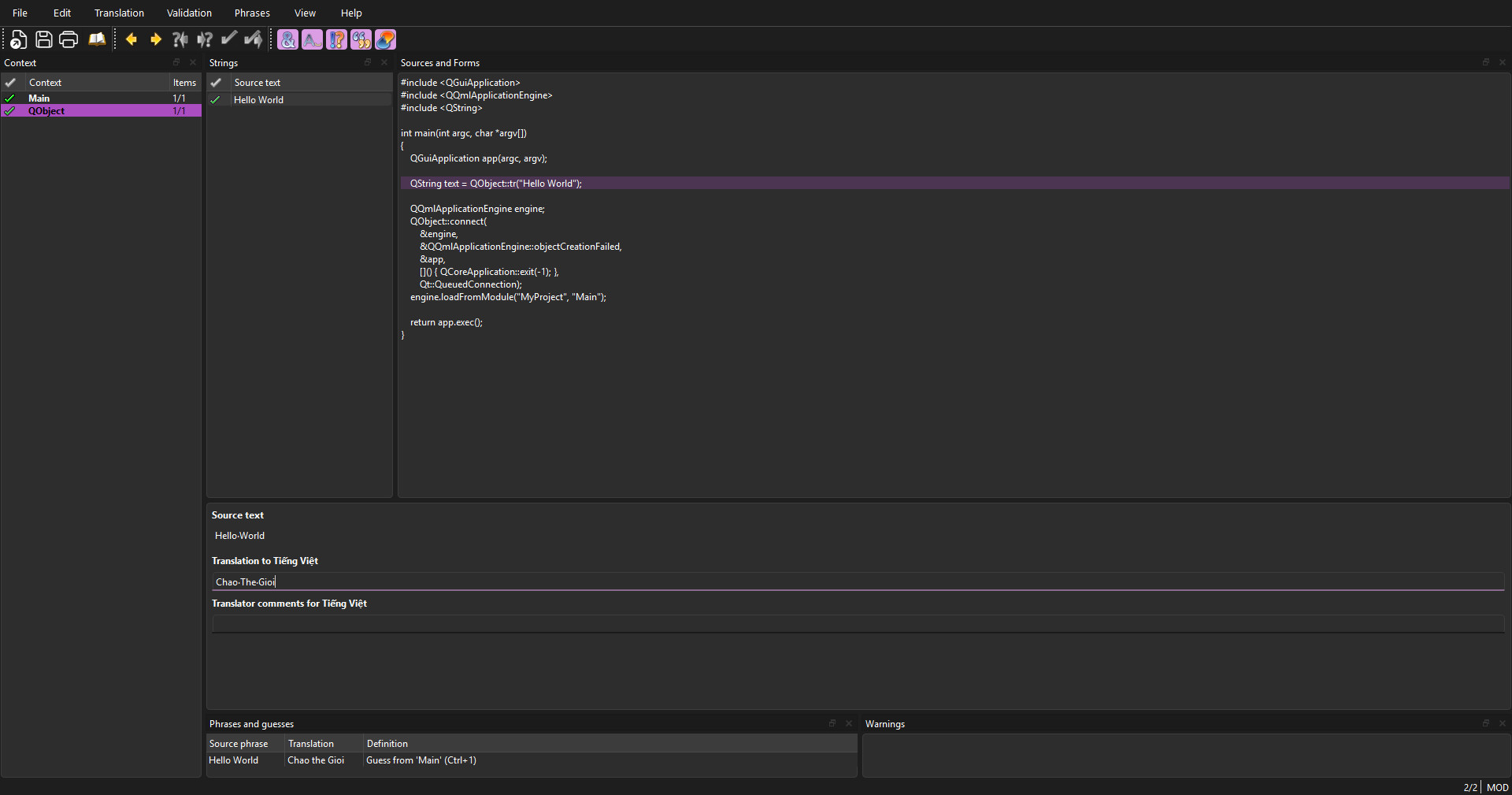
Output of this sample application looks like below image:

Walking Through the QML

Let’s briefly describe each important item in this QML:

Window

The top-level application window:

  • Fixed size 1024 × 768 for simplicity.
  • Contains a single View3D that fills the entire area.

View3D

The 3D viewport where our bar and UFO live:

  • fill: parent – covers the whole window.
  • Has an environment with SkyBox. In a real app you can assign a light probe / HDR sky texture for reflections and ambient lighting.

SceneEnvironment

Controls the global rendering environment:

  • Here we only set backgroundMode: SkyBox, but it’s also where you can enable image-based lighting, fog, post-processing effects, etc.

PerspectiveCamera

Our player camera:

  • Positioned at y: 650, z: 200 to stand inside the bar at a reasonable height.
  • Acts as the parent for the UFO anchor, so when the camera moves or rotates, the UFO follows.

ufoAnchor (Node)

  • Node under the camera that defines where the UFO is relative to the camera.
  • y: -30 moves the UFO slightly below eye level.
  • z: -150 places the UFO 150 units in front of the camera (Qt Quick 3D cameras look along the negative Z axis).

Because this node is a child of the camera, if you walk around with WASD or look around with the mouse, the UFO stays fixed in front of you like a HUD element in 3D space.

ufoRig (Node + PropertyAnimation)

  • Holds the actual UFO model and its light.
  • Has a PropertyAnimation on y that continuously rotates from 0 to 360 degrees in 8 seconds, looping forever.
  • That means the UFO rotates around its own vertical axis like a hovering saucer.

UFO (generated component)

  • This is the QML component generated by Balsam/BalsamUI from the UFO glTF file.
  • Inside it there will be one or more Model nodes, materials, textures, etc. – all created by the import tool.
  • Here we simply set scale: Qt.vector3d(4, 4, 4) to enlarge it to match the bar’s scale.

PointLight ufoFillLight

  • A point light attached to ufoRig, so it moves and rotates with the UFO.
  • Gives a warm glow (color: "#fff2c0") with moderate brightness; enough to make the UFO and surrounding surfaces visible.
  • castsShadow: true + shadowFactor: 60 produce nice dynamic shadows from the UFO onto the bar interior.

This, combined with emissive materials on the UFO windows (optional extra), creates the feeling that the light comes from the craft itself.

Bar (generated component)

  • The bar environment, generated via Balsam from the “Old Bar” glTF file.
  • scale: Qt.vector3d(100, 100, 100) enlarges it so that the heigh/width feels natural when walking around with WASD, similar to how the Qt glTF intro example scales Sponza by 100. qt.io

WasdController

  • Convenience helper from Helpers.
  • Handles keyboard + mouse controls:
    • WASD / RF keys for moving forward/back/left/right/up/down.
    • Mouse to look around (when grabbed).
  • We simply point it at our camera with controlledObject: camera.

Conclusion

In this small scene we covered the full typical pipeline:

  1. Start from a simple View3D + camera + controller.
  2. Import detailed assets from DCC tools using Balsam/BalsamUI.
  3. Instantiate the generated QML components (Bar, UFO) directly in the scene.
  4. Use Qt Quick 3D’s usual QML features—nodes, property bindings, animations, lights—to make it interactive and alive.

From here you can expand with:

  • more lights and reflection probes,
  • UI overlays in Qt Quick 2D on top of the 3D view,
  • XR support via Xr,
  • or runtime asset loading using RuntimeLoader when you really need user-provided models.

References:

https://doc.qt.io/qt-6/qtquick3d-index.html

https://doc.qt.io/qt-6/qml-qtquick3d-model.html

https://doc.qt.io/qt-6/quick3d-asset-intro.html

https://doc.qt.io/qt-6/qtquick3d-tool-balsam.html

https://sketchfab.com/3d-models/old-bar-bab28c8336f944afad0cc759d7f5ec0b
https://sketchfab.com/3d-models/ufo-flying-saucer-spaceship-ovni-094ce2baf6ee40aa8f083b7d0fcf0a9f

Ready to get started?

Contact IVC for a free consultation and discover how we can help your business grow online.

Contact IVC for a Free Consultation
View More
TECH

December 2, 2025

How to Master WPF Resource Dictionaries for Better UI Styling

Managing styles in a growing desktop application can be difficult. The most effective solution to this problem is using WPF Resource Dictionaries. By decoupling your UI logic from your code, you can create applications that are modular, easier to extend, and ready for advanced features like theming. [Learn more about WPF Overview here]

WPF offers one of the most powerful styling systems among desktop UI frameworks. However, a "God-file" App.xaml with 2,000 lines of code is a maintenance nightmare. In this guide, we will build a professional styling architecture from scratch using WPF Resource Dictionaries.

Why Use WPF Resource Dictionaries?

Organizing styles into dedicated files isn't just about aesthetics; it is about engineering a solid foundation. Implementing WPF Resource Dictionaries properly offers several key advantages:

  • Maintainability: Your App.xaml remains a clean entry point instead of a dumping ground.

  • Modularity: Styles are grouped by context (e.g., ButtonStyles.xaml, FormStyles.xaml).

  • Reusability: You can copy your Styles folder to a new project and immediately have your custom branding.

  • Scalability: This structure supports complex features like "Dark Mode" much better than a single monolithic file.

Structure Your Project

First, let’s establish a clean directory structure. Inside your project, create a new folder named Styles.

Your Solution Explorer should look like this:

project structure

Define Your Color Palette

Before styling buttons, we should define our colors. Defining them centrally in **WPF Resource Dictionaries** prevents "magic hex codes" (like #2D89EF) from being scattered all over your code.

Create Styles/Colors.xaml:

```xml
<ResourceDictionary xmlns="http://schemas.microsoft.com/winfx/2006/xaml/presentation"
                    xmlns:x="http://schemas.microsoft.com/winfx/2006/xaml">

    <Color x:Key="PrimaryColor">#2D89EF</Color>
    <Color x:Key="PrimaryHoverColor">#2b73c4</Color>
    <Color x:Key="DisabledColor">#CCCCCC</Color>

    <SolidColorBrush x:Key="PrimaryBrush" Color="{StaticResource PrimaryColor}"/>
    <SolidColorBrush x:Key="PrimaryHoverBrush" Color="{StaticResource PrimaryHoverColor}"/>
    <SolidColorBrush x:Key="DisabledBrush" Color="{StaticResource DisabledColor}"/>
    <SolidColorBrush x:Key="TextBrush" Color="#333333"/>
</ResourceDictionary>

Create a Custom Button Style

Now, let's create a button that uses the colors we defined above. We will add a ControlTemplate to change the shape. Additionally, Triggers will be used to handle Hover and Pressed states smoothly.

Create Styles/ButtonStyles.xaml:

XML
<ResourceDictionary xmlns="http://schemas.microsoft.com/winfx/2006/xaml/presentation"
                    xmlns:x="http://schemas.microsoft.com/winfx/2006/xaml">

    <Style TargetType="Button" x:Key="PrimaryButton">
        <Setter Property="Background" Value="{StaticResource PrimaryBrush}"/>
        <Setter Property="Foreground" Value="White"/>
        <Setter Property="Padding" Value="15 8"/>
        <Setter Property="FontSize" Value="14"/>
        <Setter Property="BorderThickness" Value="0"/>
        <Setter Property="Cursor" Value="Hand"/>
        
        <Setter Property="Template">
            <Setter.Value>
                <ControlTemplate TargetType="Button">
                    <Border x:Name="border"
                            Background="{TemplateBinding Background}" 
                            CornerRadius="4"
                            SnapsToDevicePixels="True">
                        <ContentPresenter VerticalAlignment="Center"
                                          HorizontalAlignment="Center"
                                          Margin="{TemplateBinding Padding}"/>
                    </Border>
                    
                    <ControlTemplate.Triggers>
                        <Trigger Property="IsMouseOver" Value="True">
                            <Setter TargetName="border" Property="Background" Value="{StaticResource PrimaryHoverBrush}"/>
                        </Trigger>
                        <Trigger Property="IsPressed" Value="True">
                             <Setter TargetName="border" Property="Opacity" Value="0.8"/>
                        </Trigger>
                        <Trigger Property="IsEnabled" Value="False">
                            <Setter TargetName="border" Property="Background" Value="{StaticResource DisabledBrush}"/>
                            <Setter Property="Foreground" Value="#666666"/>
                            <Setter Property="Cursor" Value="Arrow"/>
                        </Trigger>
                    </ControlTemplate.Triggers>
                </ControlTemplate>
            </Setter.Value>
        </Setter>
    </Style>
</ResourceDictionary>

Key Detail: Notice the use of ControlTemplate.Triggers. This allows us to target specific elements inside the template (like the Border named "border") for visual updates.

Create a TextBox Style

TextBoxes often require specific structural elements to function correctly. Therefore, the template is slightly more complex.

Create Styles/TextBoxStyles.xaml:

XML
<ResourceDictionary xmlns="http://schemas.microsoft.com/winfx/2006/xaml/presentation"
                    xmlns:x="http://schemas.microsoft.com/winfx/2006/xaml">

    <Style TargetType="TextBox" x:Key="RoundedTextBox">
        <Setter Property="Padding" Value="5"/>
        <Setter Property="FontSize" Value="14"/>
        <Setter Property="Foreground" Value="{StaticResource TextBrush}"/>
        <Setter Property="BorderBrush" Value="#AAAAAA"/>
        <Setter Property="BorderThickness" Value="1"/>
        <Setter Property="Background" Value="White"/>
        <Setter Property="VerticalContentAlignment" Value="Center"/>
        
        <Setter Property="Template">
            <Setter.Value>
                <ControlTemplate TargetType="TextBox">
                    <Border x:Name="border"
                            CornerRadius="4"
                            BorderBrush="{TemplateBinding BorderBrush}"
                            BorderThickness="{TemplateBinding BorderThickness}"
                            Background="{TemplateBinding Background}">
                        <ScrollViewer x:Name="PART_ContentHost" Margin="0"/>
                    </Border>
                    
                    <ControlTemplate.Triggers>
                        <Trigger Property="IsKeyboardFocused" Value="True">
                            <Setter TargetName="border" Property="BorderBrush" Value="{StaticResource PrimaryBrush}"/>
                            <Setter TargetName="border" Property="BorderThickness" Value="2"/>
                        </Trigger>
                    </ControlTemplate.Triggers>
                </ControlTemplate>
            </Setter.Value>
        </Setter>
    </Style>
</ResourceDictionary>

Why PART_ContentHost? In the template above, the ScrollViewer named PART_ContentHost is essential. It tells WPF where the actual text goes. If you omit this, your TextBox will not display text. [Internal Link: Learn more about XAML Naming Conventions]

Merging WPF Resource Dictionaries

This is the most critical step. Styles defined in separate files are invisible until they are merged into the application scope.

Open App.xaml:

XML
<Application x:Class="MyWpfApp.App"
             xmlns="http://schemas.microsoft.com/winfx/2006/xaml/presentation"
             xmlns:x="http://schemas.microsoft.com/winfx/2006/xaml"
             StartupUri="MainWindow.xaml">
    <Application.Resources>
        <ResourceDictionary>
            <ResourceDictionary.MergedDictionaries>
                <ResourceDictionary Source="Styles/Colors.xaml"/>
                <ResourceDictionary Source="Styles/ButtonStyles.xaml"/>
                <ResourceDictionary Source="Styles/TextBoxStyles.xaml"/>
            </ResourceDictionary.MergedDictionaries>
        </ResourceDictionary>
    </Application.Resources>
</Application>

Note on Order: The order matters! Since ButtonStyles.xaml uses resources defined in Colors.xaml, Colors.xaml must be listed above it.

Using the Styles

Now that everything is wired up, using the styles in your Views (MainWindow.xaml or UserControls) is simple.

Explicit Usage

Use the x:Key you defined.

XML
<StackPanel Margin="20" Spacing="10">
    <Button Content="Save Changes" 
            Style="{StaticResource PrimaryButton}" 
            Width="150"/>
    <TextBox Style="{StaticResource RoundedTextBox}" 
             Width="250"/>
    <Button Content="Cannot Click Me" 
            Style="{StaticResource PrimaryButton}" 
            IsEnabled="False"/>
</StackPanel>

Implicit Usage (Global Defaults)

If you want every button in your app to look like this without typing Style="{...}" every time, you can create an implicit style. Add this to Styles/GlobalStyles.xaml:

XML
<Style TargetType="Button" BasedOn="{StaticResource PrimaryButton}"/>

Summary & Best Practices

Refactoring your UI with WPF Resource Dictionaries is a hallmark of professional development. Here is a checklist for success:

  1. Logical Separation: Keep specific control styles in their own files.

  2. Centralize Colors: Always use a Colors.xaml or Brushes.xaml.

  3. Use BasedOn: When creating variations, use BasedOn so you avoid rewriting the template.

  4. Static vs Dynamic: Use StaticResource for performance. Only use DynamicResource if you plan to change the resource while the app is running.

By following this pattern, you build a WPF application that is not only beautiful but also clean, organized, and easy to maintain. Happy coding!

References

Ready to get started?

Contact IVC for a free consultation and discover how we can help your business grow online.

Contact IVC for a Free Consultation
View More
TECH

December 2, 2025

Python Vectorization: Speed Up Code by 10x

In the Python world, for loops are our bread and butter. They are readable and fit the way we think about logic: process one item, then the next.

  • Process User A -> Done.
  • Process Order B -> Done.

This "row-by-row" thinking works great for complex business logic. However, I recently encountered a scenario where this approach became a bottleneck. I needed to perform simple calculations on a large dataset (10 million records), and I realized my standard approach was leaving performance on the table.

This post shares how I learned to stop looping and start vectorizing, reducing execution time significantly.

The Comfort Zone: The "Universal Loop"

Let's look at a simple problem: Calculate the sum of squares for the first 10 million integers.

Thinking procedurally, the most natural solution is to iterate through the range and add up the results.

import time

def sum_squares_loop(n):
    result = 0
    for i in range(n):
        result += i * i
    return result

# Running with 10 million records
N = 10_000_000
start_time = time.time()
print(f"Result: {sum_squares_loop(N)}")
print(f"Execution Time (Loop): {time.time() - start_time:.4f} seconds")

The Reality Check:

Running this on Python 3.11, it takes about 0.34 seconds.

You might say: "0.34 seconds is fast enough!" And for a single run, you are right. Python 3.11 has done an amazing job optimizing loops compared to older versions.

But what if you have to run this calculation 100 times a second? Or what if the dataset grows to 1 billion rows? That "fast enough" loop quickly becomes a bottleneck.

The Shift: Thinking in Sets (Vectorization)

To optimize this, we need to change our mental model. Instead of telling the CPU: "Take number 1, square it. Take number 2, square it...", we want to say: "Take this entire array of numbers and square them all at once."

This is called Vectorization.

By using a library like NumPy, we can push the loop down to the C layer, where it's compiled and optimized (often utilizing CPU SIMD instructions).

Here is the same logic, rewritten:

import numpy as np
import time

def sum_squares_vectorized(n):
    # Create an array of integers from 0 to n-1
    arr = np.arange(n)
    # The operation is applied to the entire array at once
    return np.sum(arr * arr)

# Running with 10 million records
N = 10_000_000
start_time = time.time()
print(f"Result: {sum_squares_vectorized(N)}")
print(f"Execution Time (Vectorized): {time.time() - start_time:.4f} seconds")

The Result: This runs in roughly 0.036 seconds.

Performance Comparison

Method Execution Time Relative Speed
Standard For Loop (Python 3.11) ~0.340s 1x
Vectorized Approach ~0.036s ~10x

We achieved a 10x speedup simply by changing how we access and process the data.

A Crucial Observation: The Cost of Speed

If you run the code above closely, you might notice something strange: The results might differ.

  • Python Loop: Returns the correct, massive number (≈ 3.3 × 10²⁰).
  • Vectorized (NumPy): Might return a smaller or negative number (due to overflow).

Why?

This highlights a classic engineering trade-off: Safety vs. Speed.

  • Python Integers are arbitrary-precision objects. They can grow infinitely to hold any number, but they are heavy and slow to process.
  • NumPy Integers are fixed-size (usually int64 like in C). They are incredibly fast because they fit perfectly into CPU registers, but they can overflow if the number gets too big.

The takeaway: In this benchmark, we are measuring the engine speed, not checking the math homework. When using vectorized tools in production, always be mindful of your data types (e.g., using float64 or object if numbers are astronomical)!

Lessons for Scalable Software

While NumPy is a specific tool, the concept of Set-based operations applies everywhere in software engineering, from database queries to backend APIs.

  1. Batch Your Database Queries:
    Avoid the "N+1 problem" (looping through a list of IDs and querying the DB for each one). Instead, use WHERE id IN (...) to fetch everything in a single set-based query.
  2. Minimize Context Switching:
    Every time your code switches layers (App <-> DB, Python <-> C), there is a cost. Vectorization minimizes this cost by processing data in chunks rather than single items.

Conclusion

Loops are an essential part of programming, but they aren't always the right tool for the job. When performance matters, especially with large collections of data, try to think in sets rather than steps.

It’s a small shift in mindset that pays huge dividends in performance.

[References]

https://wiki.python.org/moin/PythonSpeed/PerformanceTips

https://realpython.com/numpy-array-programming/

Ready to get started?

Contact IVC for a free consultation and discover how we can help your business grow online.

Contact IVC for a Free Consultation
View More
1 2 3 4 5 23
Let's explore a Partnership Opportunity

CONTACT US


At ISB Vietnam, we are always open to exploring new partnership opportunities.

If you're seeking a reliable, long-term partner who values collaboration and shared growth, we'd be happy to connect and discuss how we can work together.

Add the attachment *Up to 10MB