If you are a developer or a technical writer, you know the pain of creating sequence diagrams. You open a GUI tool like Visio or Lucidchart, drag a box, drag another box, draw a line, realize the line isn't straight, adjust the line, and then realize you need to move everything to the right to fit a new actor.
It’s tedious. It’s hard to version control. It feels like drawing, not engineering.
Enter Mermaid.js. Mermaid allows you to create diagrams using text and code. It renders Markdown-like syntax into beautiful, professional diagrams. In this guide, we will master the art of writing Sequence Diagrams as code.
What is Mermaid and Why Use It?
Mermaid is a JavaScript-based diagramming and charting tool that renders Markdown-inspired text definitions to create and modify diagrams dynamically.
Why choose Mermaid?
-
Diagrams as Code: You store your diagrams in your Git repository as
.mdfiles. -
Version Control: You can see
diffsin your diagrams just like you see changes in your code. -
Speed: No more pixel-pushing. You focus on the logic; Mermaid handles the layout.
-
Integration: Supported natively by GitHub, GitLab, Notion, Obsidian, and VS Code.
The "Hello World" of Sequence Diagrams
To create a sequence diagram in a Markdown file, you use a code block with the mermaid identifier.
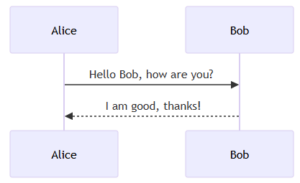
Let's start with the absolute basics: Alice talking to Bob.
sequenceDiagram
    Alice->>Bob: Hello Bob, how are you?
    Bob-->>Alice: I am good, thanks!
The Output: The code above tells Mermaid to draw two participants. The ->> represents a solid arrow (request), and -->> represents a dotted arrow (response).
Defining Participants and Actors
By default, Mermaid creates participants in the order they appear. However, for complex diagrams, you often want to define them explicitly to control the order or use aliases.
-
participant: Renders as a rectangle (default). -
actor: Renders as a stick figure. -
as: Allows you to use short aliases in your code.
sequenceDiagram
    actor U as User
    participant FE as Frontend
    participant API as Backend API
    participant DB as Database

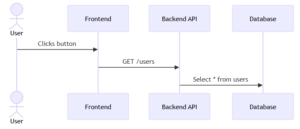
    U->>FE: Clicks button
    FE->>API: GET /users
    API->>DB: Select * from users
The Output: Notice how we used U, FE, and API in the code, but the diagram renders the full names.
Activations (Lifelines)
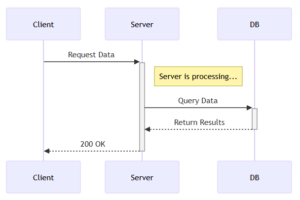
In a real system, a service takes time to process a request. We visualize this using "activation bars" (the vertical rectangles on the lifeline).
-
Long way:
activate Alice/deactivate Alice -
Short way (Recommended): Add
+to the end of the arrow to activate, and-to deactivate.
sequenceDiagram
    participant Client
    participant Server
    participant DB

    Client->>+Server: Request Data
    Note right of Server: Server is processing...
    Server->>+DB: Query Data
    DB-->>-Server: Return Results
    Server-->>-Client: 200 OK
The Output: The grey bars indicate that the Server and Database are "busy" processing the request. This is crucial for analyzing performance bottlenecks.
Advanced Logic: Loops and Alternatives
Software isn't linear; it has loops and if/else conditions. Mermaid handles this with loop, alt (alternative), and opt (optional).
The alt Block (If / Else)
This is used to show mutually exclusive paths, such as a successful login vs. a failed login.
sequenceDiagram
    actor User
    participant Auth as Auth Service

    User->>Auth: Submit Credentials

    alt Credentials Valid
        Auth-->>User: Return Token (200 OK)
    else Credentials Invalid
        Auth-->>User: Return Error (401 Unauthorized)
    end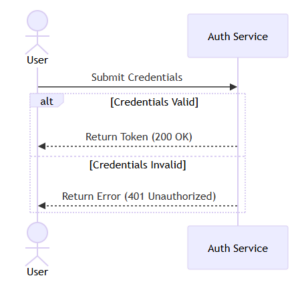
The loop Block
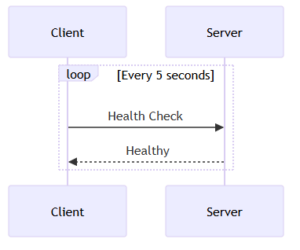
Used for repeated actions, such as polling or retries.
sequenceDiagram
    participant Client
    participant Server

    loop Every 5 seconds
        Client->>Server: Health Check
        Server-->>Client: Healthy
    end
The Output (Complex Logic): Here is a visualization of how these logical blocks appear in a rendered diagram.
Pro Tips for Clean Diagrams
-
Use Notes: You can add notes to clarify specific steps using
Note right of [Actor]orNote over [Actor1],[Actor2]. -
Keep it Simple: If your sequence diagram is getting too wide or too long, consider breaking it into two separate diagrams.
-
Use the Live Editor: When learning, use the Mermaid Live Editor. It gives you instant feedback as you type.
Conclusion
Switching to "Diagrams as Code" with Mermaid is a game-changer for developer productivity. It keeps your documentation close to your code, makes updates trivial, and ensures your diagrams always look consistent.
Next time you need to document an API flow, close Visio and open your Markdown editor. Your future self (and your team) will thank you.
Ready to get started?
Contact IVC for a free consultation and discover how we can help your business grow online.