I. Overview of Batch and VBScript
Batch file
Batch file (.bat or .cmd): A text file containing Command Prompt (CMD) commands executed sequentially to automate tasks on Windows. Batch can invoke programs, scripts, or execute system commands.
VBScript file (.vbs)
VBScript file (.vbs): A file containing script code written in the VBScript language, commonly used to automate tasks on Windows, such as manipulating files, the registry, or COM applications (e.g., Excel). VBScript is executed via Windows Script Host (wscript.exe or cscript.exe).
A Batch file can call a VBS file to leverage VBScript's advanced processing capabilities, particularly when interacting with COM objects or performing tasks that CMD does not support effectively.
II. Methods to Call a VBS File from a Batch File
There are several ways to call a VBS file from a Batch file, depending on the purpose and how you want the script to run (with a visible interface, in the background, or via the command line). Below are the main methods:
1. Using wscript.exe or cscript.exe
Windows Script Host provides two tools for running VBScript:
wscript.exe
wscript.exe: Executes VBScript in a graphical environment, typically used for scripts with a user interface (e.g., displaying MsgBox).
cscript.exe
cscript.exe: Executes VBScript in a command-line environment, suitable for printing output to the console or running in the background.
Basic Syntax in Batch:
wscript.exe "path_to_vbs_file" [parameter_1] [parameter_2] …
cscript.exe //Nologo "path_to_vbs_file" [parameter_1] [parameter_2] …
//Nologo: Suppresses version and copyright information of cscript.exe, resulting in cleaner output.
[parameter_1] [parameter_2] ...: Parameters passed to the VBS file, accessible in VBScript via WScript.Arguments.
2. Run a VBS file without displaying the Command Prompt window.
If you don’t want the CMD window to appear when running a Batch file (especially when using Task Scheduler), you can use an intermediate VBScript to call the Batch file or hide the window.
Example: Intermediate VBS file (quietrun.vbs) to run a Batch file silently:
' quietrun.vbs

If WScript.Arguments.Count >= 1 Then

ReDim Args(WScript.Arguments.Count - 1)

For i = 0 To WScript.Arguments.Count - 1

Arg = WScript.Arguments(i)

If InStr(Arg, " ") > 0 Then Arg = """" & Arg & """"

Args(i) = Arg

Next

CreateObject("WScript.Shell").Run Join(Args), 0, True

End If
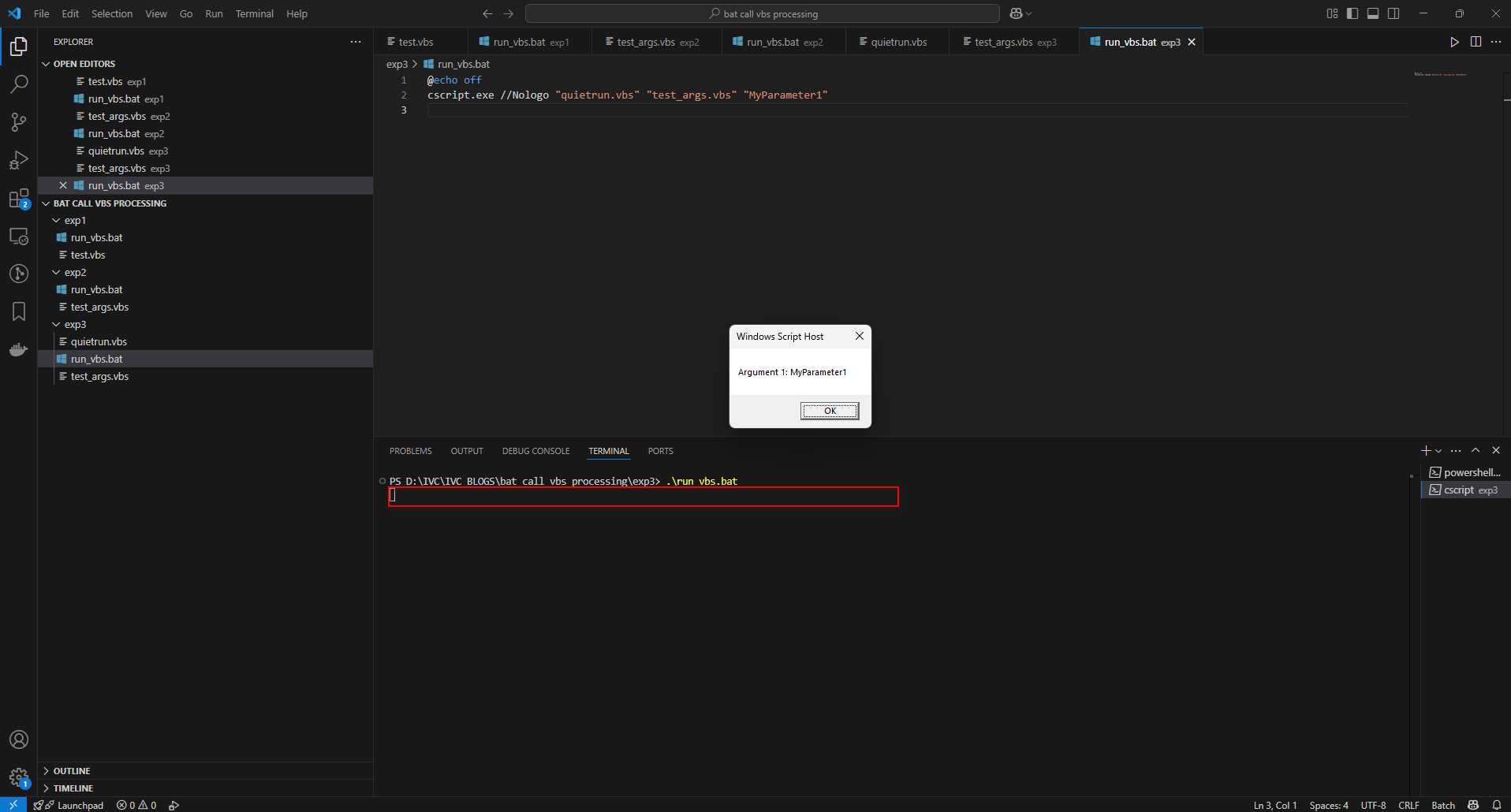
Batch file to call a VBS file to run another VBS file (run_hidden.bat):
@echo off
cscript.exe //Nologo "quietrun.vbs" "test.vbs"
Effectiveness: The test.vbs file runs without displaying the CMD window.
Note: Ensure quietrun.vbs and test.vbs are in the same directory or specify the full path.
Result:
3. Call a VBS script using Task Scheduler
To enable automation, Task Scheduler can be used to execute a batch file. However, it is important to configure the task properly to avoid issues such as COM automation failures.
Task Scheduler Configuration:
1. Open Task Scheduler and create a new task.
2. In the “Actions” tab, add a new action:
Action: Start a program
Program/script: cscript.exe
Add arguments: //Nologo "path\to\test.vbs"
Alternatively, to run via batch file:
Program/script: path\to\run_vbs.bat
3. In the “General” tab, configure the following options:
Run whether user is logged on or not
Run with highest privileges (especially if the VBS requires admin rights)
Note:
If the VBS script interacts with Excel (e.g., opens a workbook), make sure the account running the task has proper COM access permissions. You may need to configure DCOM settings via dcomcnfg.exe.
Always check Task Scheduler history for errors.
Exit code 0x0 indicates success, but you should still verify the actual execution result to ensure the task behaves as expected.
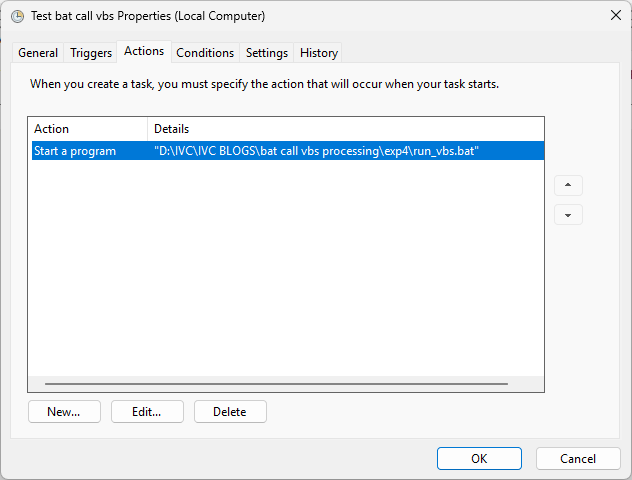
Result:
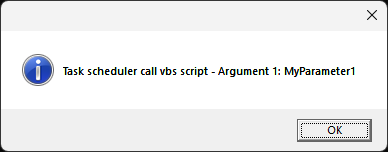
III. Specific examples
Example 1: Simple VBS file call
' test.vbs
WScript.Echo "Hello from VBScript!"
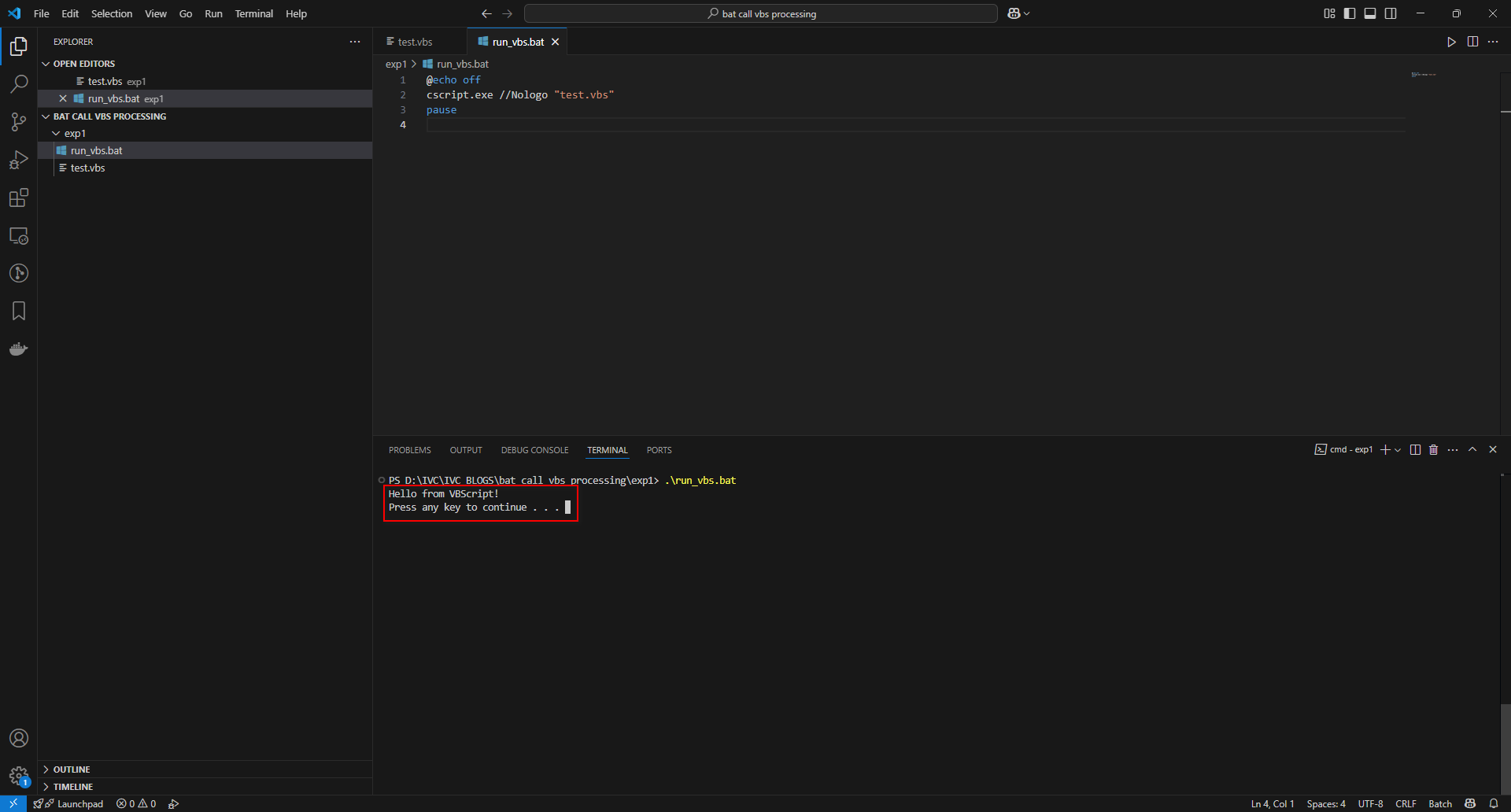
Batch file (run_vbs.bat) to call it:
@echo off
cscript.exe //Nologo "test.vbs"
pause
Result: Prints "Hello from VBScript!" in the console.
@echo off: hides batch commands for cleaner output.
Example 2: Passing parameters
' test_args.vbs
If WScript.Arguments.Count > 0 Then
WScript.Echo "Argument 1: " & WScript.Arguments(0)
Else
WScript.Echo "No arguments provided."
End If"
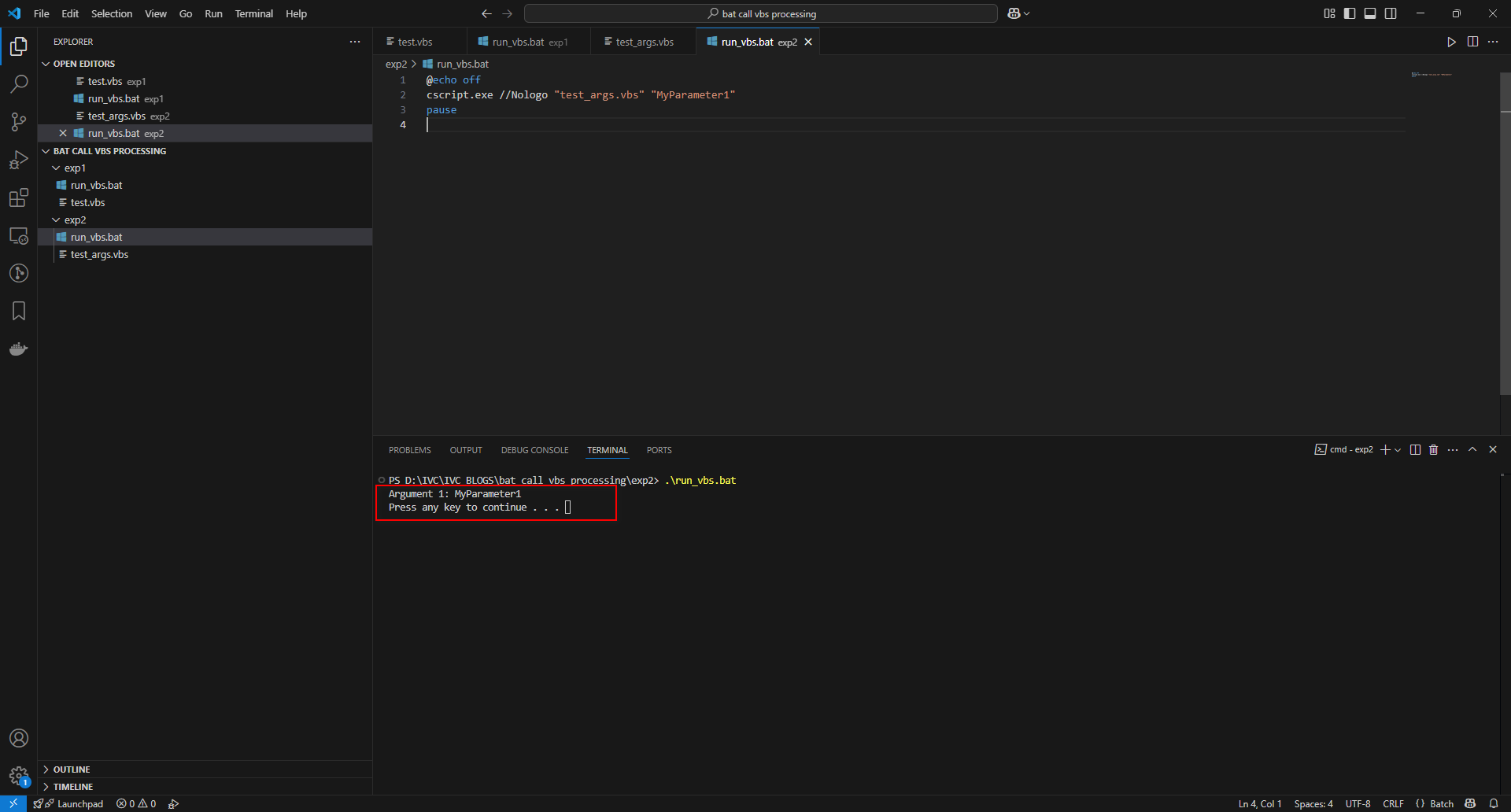
batch file:
@echo off
cscript.exe //Nologo "test_args.vbs" "MyParameter"
pause"
Ressult: Prints "Argument 1: MyParameter"
Example 3:
Purpose: Batch file calls a VBS file to:
Retrieve the computer name.
Get free disk space of a specified drive (e.g., C:).
Write the information into a file named system_info.txt.
Requirements:
The batch file passes the drive letter as a parameter (e.g., "C:").
The VBScript returns results and handles errors.
Runs silently (no visible CMD window).
Suitable for automation using Task Scheduler.
1. VBScript File (get_system_info.vbs)
This VBS file retrieves system information and writes it to a text file.
' get_system_info.vbs
Option Explicit
Dim WShell, FSO, ComputerName, DriveLetter, FreeSpace, OutputFile
Dim OutStream, ErrMsg
' Initialize objects
Set WShell = CreateObject("WScript.Shell")
Set FSO = CreateObject("Scripting.FileSystemObject")
' Check arguments
If WScript.Arguments.Count < 2 Then
WScript.StdErr.WriteLine "Error: Missing arguments. Usage: get_system_info.vbs <DriveLetter> <OutputFile>"
WScript.Quit 1
End If
DriveLetter = WScript.Arguments(0) ' Exp: "C:"
OutputFile = WScript.Arguments(1) ' Exp: "system_info.txt"
' Get computer name
On Error Resume Next
ComputerName = WShell.ExpandEnvironmentStrings("%COMPUTERNAME%")
If Err.Number <> 0 Then
ErrMsg = "Error getting Computer Name: " & Err.Description
WScript.StdErr.WriteLine ErrMsg
WScript.Quit 2
End If
On Error GoTo 0
' Get free space of the drive
On Error Resume Next
Dim Drive
Set Drive = FSO.GetDrive(DriveLetter)
If Err.Number = 0 Then
FreeSpace = Drive.FreeSpace / (1024^3) ' Convert to GB
FreeSpace = FormatNumber(FreeSpace, 2) ' Round to 2 decimal places
Else
ErrMsg = "Error accessing drive " & DriveLetter & ": " & Err.Description
WScript.StdErr.WriteLine ErrMsg
WScript.Quit 3
End If
On Error GoTo 0
' Write results to file
On Error Resume Next
Set OutStream = FSO.CreateTextFile(OutputFile, True)
If Err.Number = 0 Then
OutStream.WriteLine "Computer Name: " & ComputerName
OutStream.WriteLine "Free Space on " & DriveLetter & ": " & FreeSpace & " GB"
OutStream.Close
WScript.Echo "Successfully wrote to " & OutputFile
Else
ErrMsg = "Error writing to " & OutputFile & ": " & Err.Description
WScript.StdErr.WriteLine ErrMsg
WScript.Quit 4
End If
On Error GoTo 0
2. Batch File (run_system_info.bat)
Batch file calls the VBS script and handles the result.
@echo off
setlocal EnableDelayedExpansion
:: Define variables
set "VBS_FILE=get_system_info.vbs"
set "DRIVE=C:"
set "OUTPUT_FILE=system_info.txt"
:: Check if the VBS file exists
if not exist "%VBS_FILE%" (
echo Error: VBS file "%VBS_FILE%" not found.
exit /b 1
)
:: Call the VBS file
echo Calling VBS to collect system info...
cscript.exe //Nologo "%VBS_FILE%" "%DRIVE%" "%OUTPUT_FILE%" > output.txt 2> error.txt
set "EXIT_CODE=%ERRORLEVEL%"
:: Check the result
if %EXIT_CODE% equ 0 (
echo VBS executed successfully.
type output.txt
echo Contents of %OUTPUT_FILE%:
type "%OUTPUT_FILE%"
) else (
echo Error occurred. Exit code: %EXIT_CODE%
type error.txt
)
:: Clean up temporary files
del output.txt error.txt 2>nul
:: End
echo.
echo Done.
pause
Explanation:
Variables:
VBS_FILE: Name of the VBS file.
DRIVE: Drive to check.
OUTPUT_FILE: Output file.
File Check: Ensure the VBS file exists before calling it.
Calling VBS:
Use cscript.exe //Nologo to run the VBS script.
Redirect standard output (StdOut) to output.txt and standard error (StdErr) to error.txt.
Error Checking: Use %ERRORLEVEL% to determine execution status (0 = success).
Displaying Results:
If successful, display messages from output.txt and the contents of system_info.txt.
If there is an error, display the error code and contents of error.txt.
Cleanup: Delete temporary files output.txt and error.txt
Result:
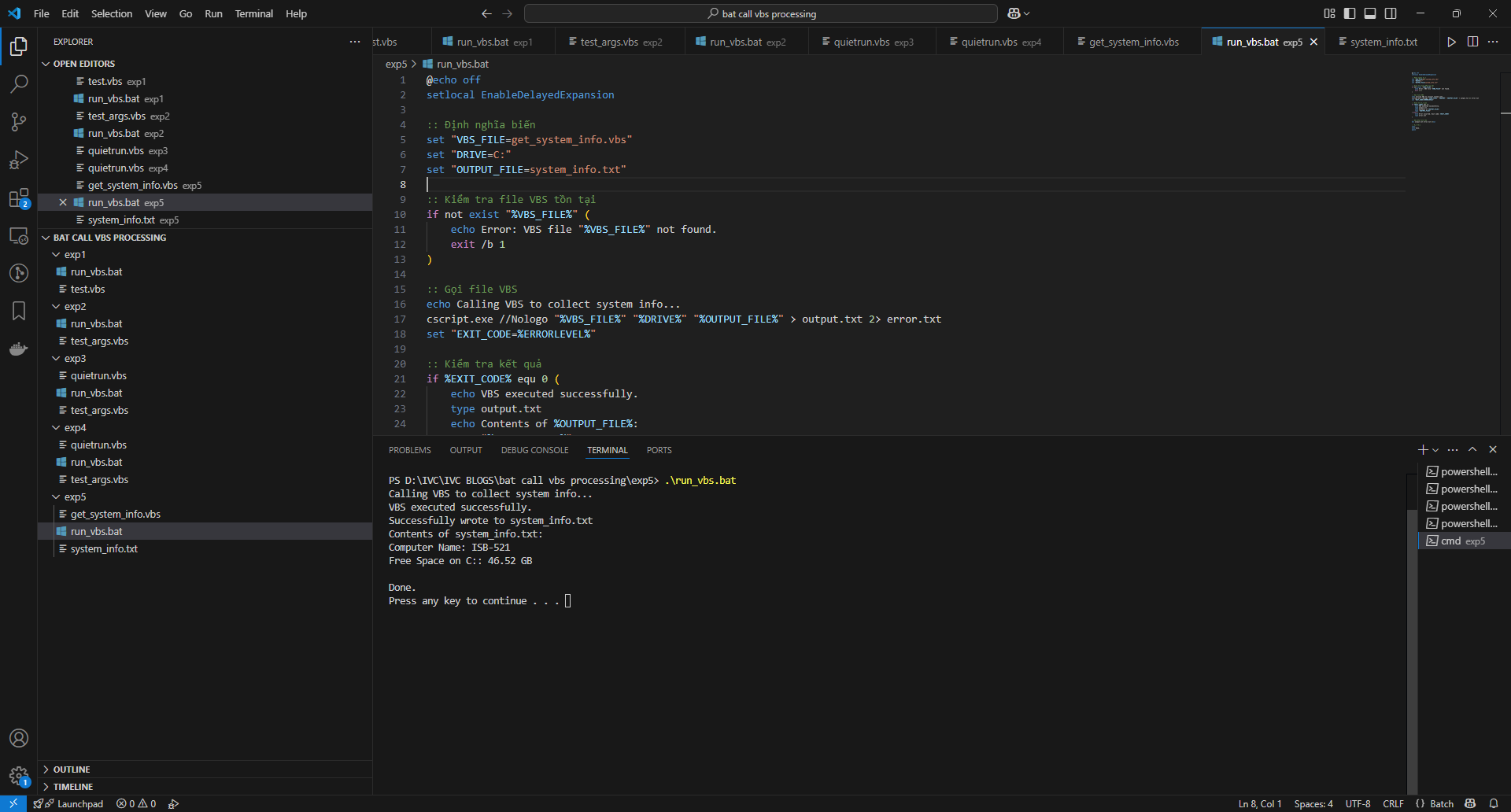
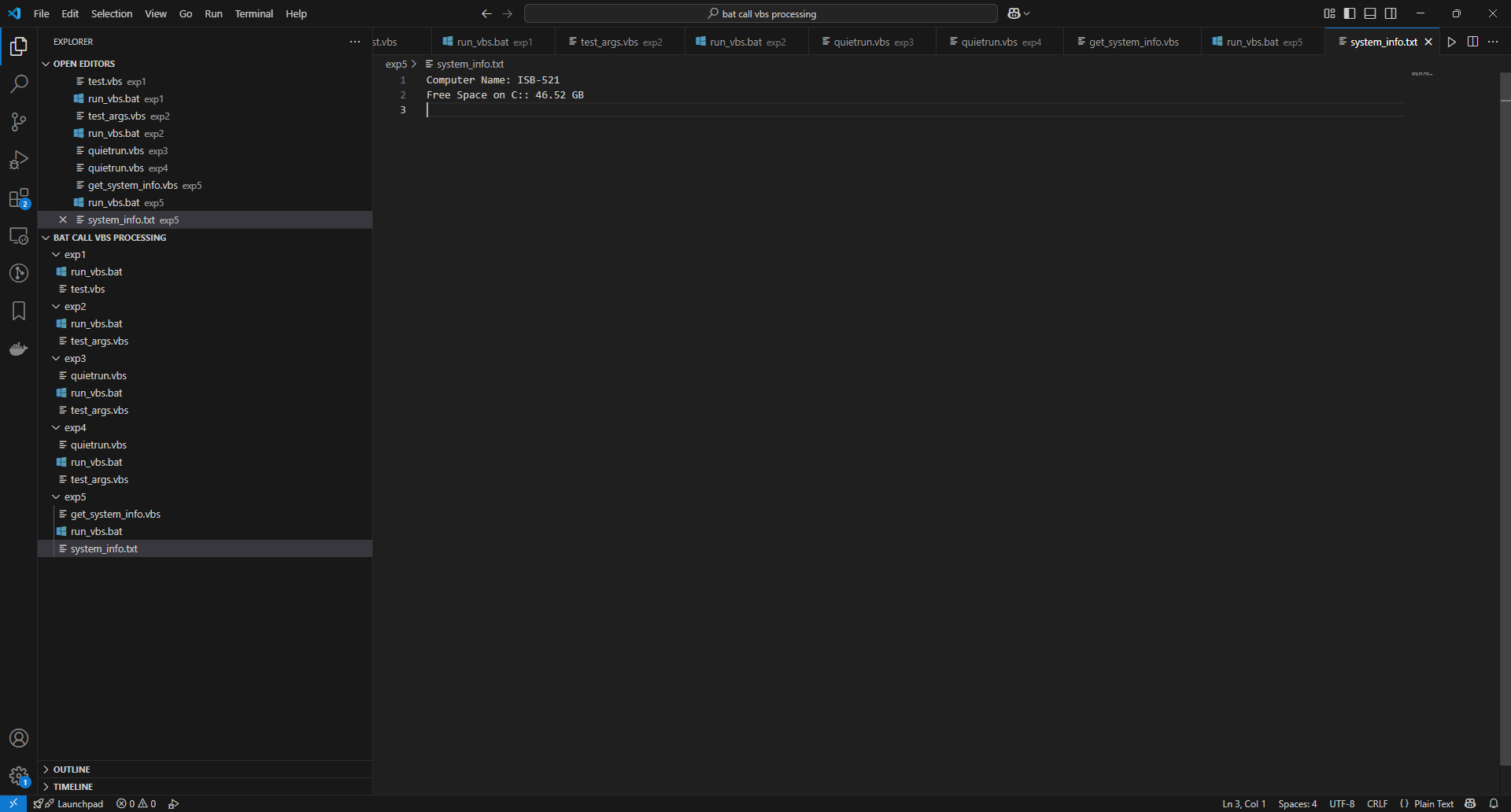
Cover image created by www.bing.com
Whether you need scalable software solutions, expert IT outsourcing, or a long-term development partner, ISB Vietnam is here to deliver. Let’s build something great together—reach out to us today. Or click here to explore more ISB Vietnam's case studies.